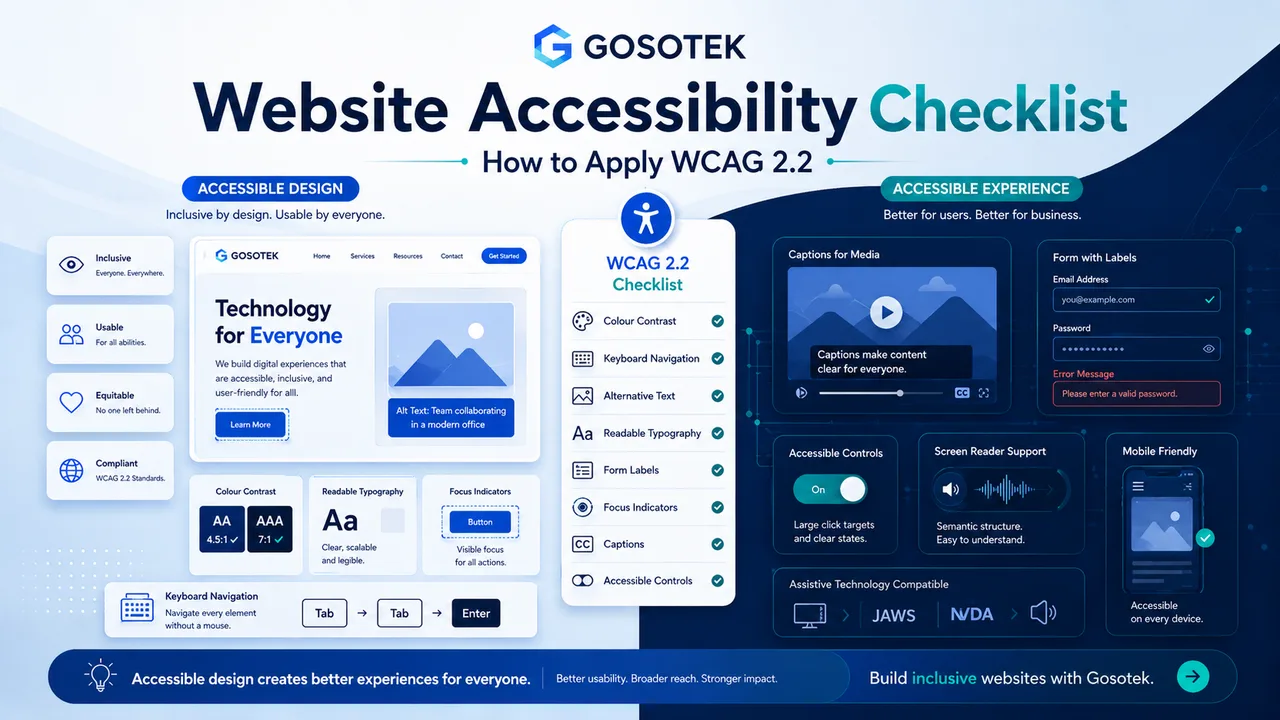
Website accessibility helps people with visual, hearing, motor, cognitive and other disabilities use digital content and controls. It also produces clearer experiences for people using different devices or input methods.
WCAG 2.2 is the current W3C Recommendation in the WCAG 2 series. It organizes accessibility under four principles—perceivable, operable, understandable and robust—with testable success criteria at Levels A, AA and AAA.
This checklist is a practical starting point, not proof of formal conformance.
1. Check Colour Contrast
Normal text should generally meet at least 4.5:1 contrast, while qualifying large text should meet at least 3:1. Do not use colour alone to show errors, status or required fields. Check body text, buttons, links, placeholders, icons, charts and text displayed over images.
2. Support Keyboard Navigation
Users should be able to reach and operate menus, modals, forms, tabs and checkout controls without a mouse. Test with Tab, Shift+Tab, Enter, Space and relevant arrow keys. Focus order should follow the page’s logical sequence.
3. Keep Focus Indicators Visible
Keyboard users must see which element currently has focus. Do not remove browser outlines unless they are replaced with a clear alternative. WCAG 2.2 also includes criteria concerning obscured focus and minimum target size.
4. Write Useful Alternative Text
Informative images need alternative text that communicates their purpose. Decorative images should usually be ignored by assistive technology. Avoid file names or descriptions such as “image” that add no meaning.
5. Use Readable Typography and Structure
Choose legible fonts, comfortable line spacing and clear headings. Use semantic heading levels so assistive technologies can understand the page structure.
6. Label Forms Properly
Every input needs a persistent, meaningful label. Instructions and error messages should explain what went wrong and how to correct it. Placeholder text should not be the only label.
7. Add Captions and Media Alternatives
Videos with speech need accurate captions. Audio-only content may need a transcript, while important visual information may require an audio description or equivalent text.
8. Build Accessible Controls
Buttons should be coded as buttons, links as links and custom controls with correct names, roles, states and keyboard behaviour. Touch targets should not require excessive precision.
9. Test Beyond Automated Tools
Scanners can find some issues, but not whether alt text is meaningful, focus order is logical or instructions are understandable. Combine automated checks with keyboard, screen-reader and human testing.
Common Accessibility Mistakes
Accessibility is often treated as a final-stage plugin or overlay. That cannot reliably repair inaccessible structure, content and interactions.
Include accessibility in design systems, content workflows, development standards and quality assurance.
Gosotek’s approach is to fix high-impact barriers first, document reusable solutions and prevent the same issues from returning.
Frequently Asked Questions
Does WCAG 2.2 apply only to government websites?
No. WCAG is an international accessibility standard used across public, private and nonprofit digital services.
Is Level AA a common target?
Yes, although legal and contractual requirements vary by organization and jurisdiction.
Can a plugin make a website compliant?
A plugin may provide limited assistance, but it cannot replace accessible design, content, code and testing.
Are automated accessibility scores sufficient?
No. They are indicators, not complete accessibility evaluations.
Should accessibility be tested after updates?
Yes, particularly after changes to navigation, forms, templates or interactive components.
Conclusion
Applying WCAG 2.2 requires accessible structure, interaction, content and testing across the full customer journey—not only colour changes or alt text.